Calendar integrations are user integrations, meaning that each member can integrate their own individual calendar to their account.
Scheduled events
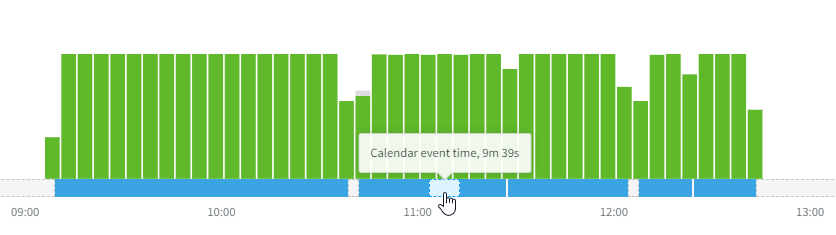
DeskTime will automatically take the scheduled time and name of the event, mark it as Productive time, and apply it to the Productivity bar in your My DeskTime section, filling in any offline time during that period.
Absences
When you add an absence in the DeskTime Absence Calendar, it will automatically be synchronized with your Google Calendar. An out-of-office event will be created, so your calendar reflects your availability without needing to add it manually.
Once your absence is approved and synchronized with Google Calendar, all scheduled events during that time will be automatically declined, except for the ones you’ve created yourself.
Note! Currently, this feature isn’t available for Outlook Calendar.
Integration steps
It is possible to integrate two calendars:
To integrate the calendars, you must follow a few simple steps:
- Go to Settings > Integrations.
- Click on Activate for the necessary calendar.
- Choose or introduce the email and password of the account you wish to integrate.
- Allow DeskTime to access the events and calendars; later on, you will be able to adjust that in the integration’s settings.
- Click on Save or Continue to finish the process.
For both options, Google and Outlook, you can also adjust the integration's settings and select which calendar’s events you want to synchronize and only during the assigned Working days/hours.
Note!
It is also possible to disable the event synchronization for the whole account, a certain team, or even just a specific team member. In each of the Settings, under Tracking, you can uncheck the option Enable calendar sync. Keep in mind, that the option to integrate the calendars will still appear, but the events themselves will not be uploaded to the Productivity bar.