There are two ways to invite other users to join your DeskTime account:
Option 1: Navigate to the Team Members section and click the green Add team members button in the top-right corner.
Option 2: Go to Settings → Team members and click the green Add team members button in the top-right corner.
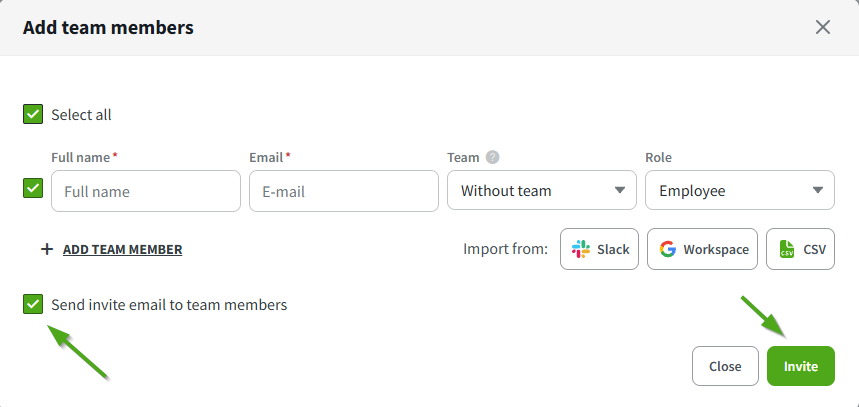
Regardless of the path you choose, a pop-up window will appear. Fill in the required details for your new team member. At the bottom of the window, you can choose whether to send an invitation email immediately by checking the invitation box.
Additional information
- Integrations: You can also sync and add team members using one of our available third-party integrations.
- CSV file: You can also add users in bulk, using a CSV file. The columns of the file need to be prepared with all the required details. Please take a look at the attached example file to learn more details.
Flexible Setup: You don’t have to assign a team or role right away; these details can be added or edited later from your Settings.
Resending Credentials: If a user has already been added but forgot their login details, go to Settings → Team members. Locate the user, click the three vertical dots (menu) -> Send invite. An automated email will be sent with their credentials.
Bulk Resend: You can also resend invitations by checking the box next to a member's name and clicking the paper plane icon.