DeskTime offers two ways to track time: automatic time tracking with the desktop app and manual time tracking using the browser version or mobile app.
Automatic time tracking
Automatic tracking provides the most complete tracking experience and enables all features included in your subscription plan.
How to start tracking time automatically:
- Download and install the desktop app for your operating system
- Log in, and tracking will begin automatically
To make sure tracking starts every time you start your computer, enable the option to launch the app on startup. Instructions for each operating system are available here.
What automatic tracking records
The desktop app tracks:
- Applications
- URLs
- Document titles
It also enables features such as:
- Private time
- Break reminders
- Screenshots (if included in your plan)
- Productivity level adjustments for apps and URLs
The desktop app registers Idle time when the computer is not actively used. Idle time can later be adjusted by adding offline time manually.
Manual time tracking
Manual tracking options allow you to log time without relying solely on the desktop app.
Web Timer
Use the Web Timer in the browser by clicking the Start timer button.
You can:
- Assign a project and task
- Add a description
- Edit the project, task, or tracked time period after stopping the timer
The Web Timer does not track applications, URLs, idle time, or screenshots.
Mobile time
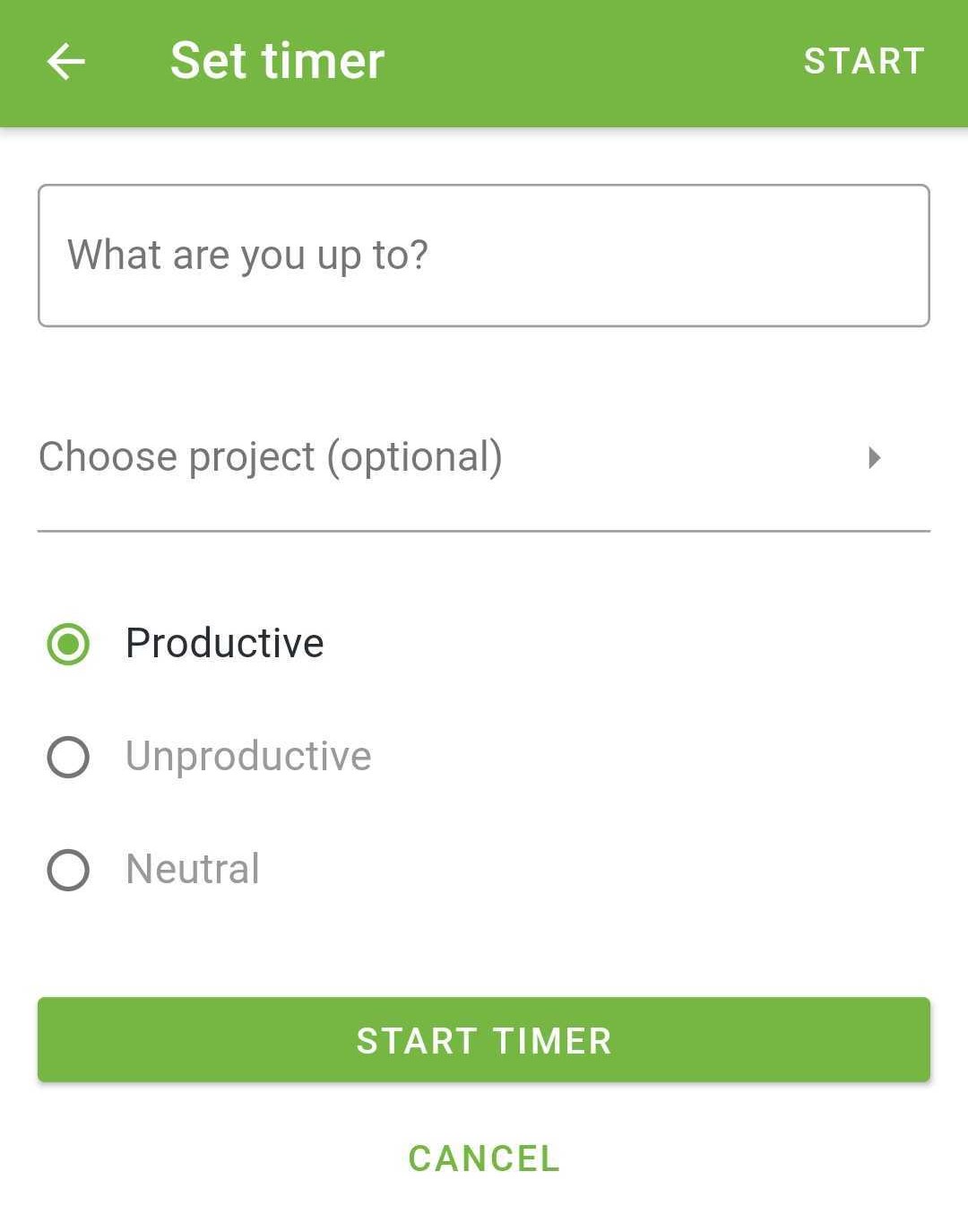
Use the mobile app to start the Mobile timer when working away from your computer.
You can assign a project when starting the timer or add one later if needed.
Calendar integrations
You can connect DeskTime to your Google Calendar or Outlook Calendar as part of our calendar integrations.
Scheduled events will automatically sync with DeskTime, including the event name and duration.
If you use Google Calendar, DeskTime absences can also sync with your calendar. More information is available in this article.
Manual offline time
You can manually add Offline time from the Productivity bar in your My DeskTime page. When adding offline time, you can include a description and assign a project if needed.
Managing manual tracking permissions
Manual tracking options (Web timer, Mobile timer, Offline time) can be disabled for the entire account, specific teams, or individual team members.
To manage these settings, go to Settings → Tracking → Manual time tracking